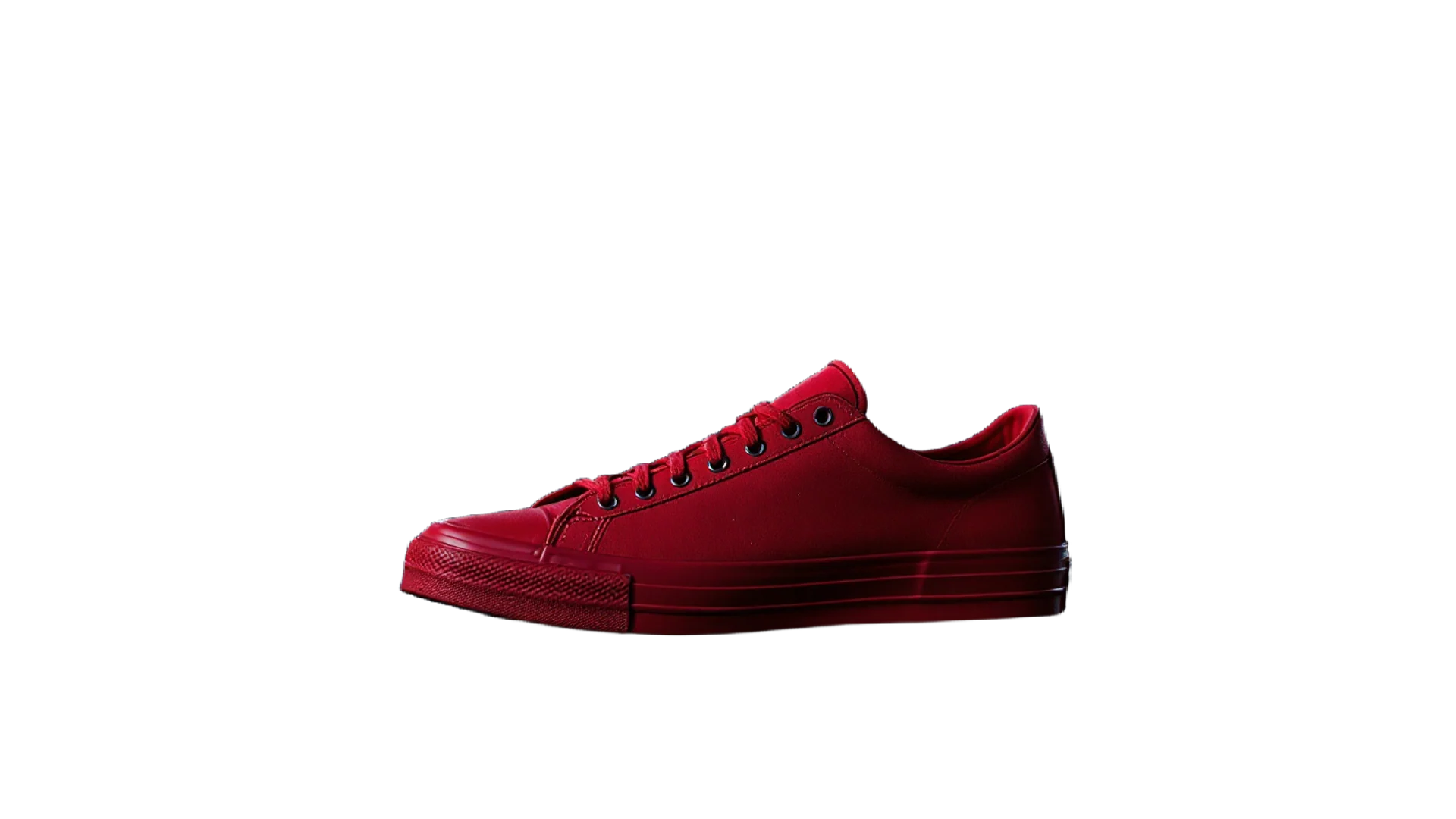
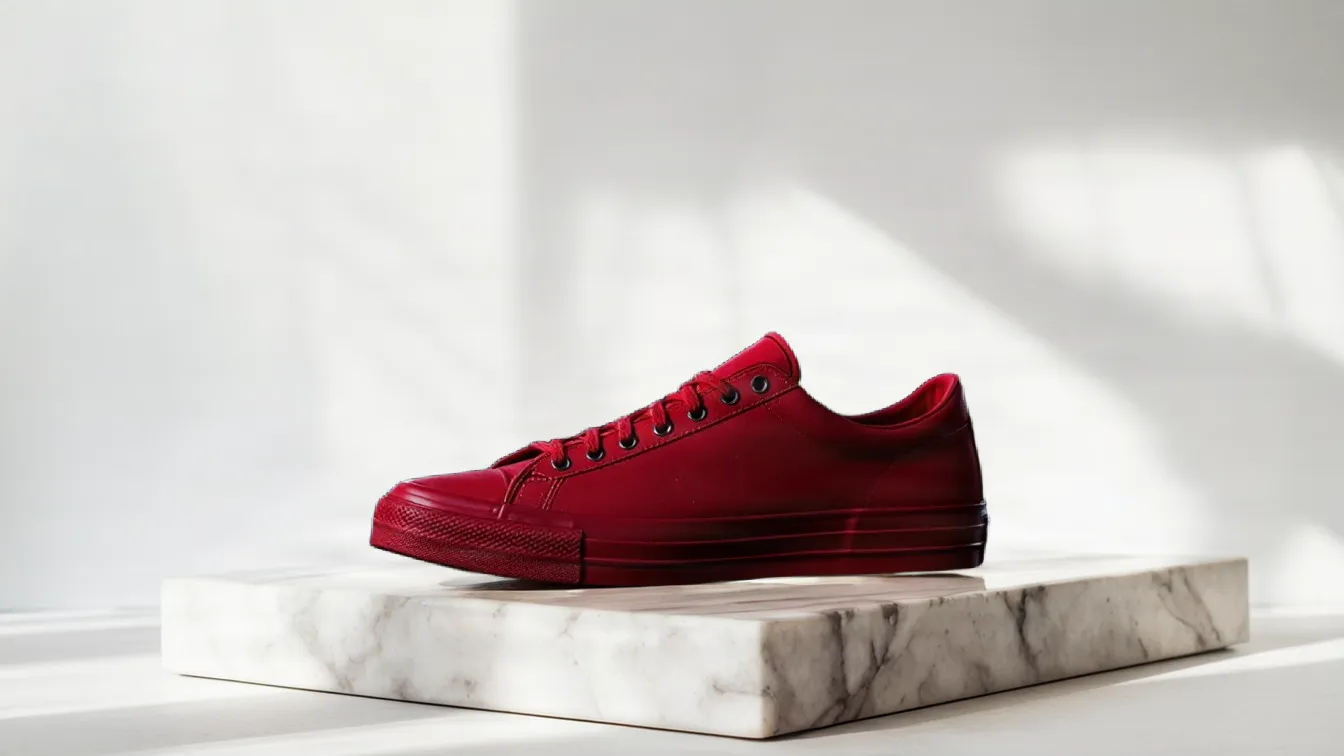
To remove the background from a product photo, cut the product out onto a transparent background, then place it on pure white or a new scene and save it at the size your marketplace asks for. An AI background remover does the cut-out in one step, and a free photo editor can do the same job by hand if you have the time.
What a Good Product Cut-Out Looks Like
A shopper should never notice that the background was removed. Before you upload anything, check these five things at full size:
- A clean edge. No thin halo of the old background around the product. Halos show most on dark products shot against a light wall, and the other way round.
- The gaps are gone too. The space inside a mug handle, between bag straps or under a chair should be transparent, not filled with a scrap of the old wall.
- Fine detail kept. Laces, tassels, fur and the soft edge of a knitted jumper should look like the real thing, not like they were cut with scissors.
- True colour. The item on screen should match the item that arrives. Do not let a new background tint it.
- Enough pixels. Shoppers zoom in. A cut-out from a small, soft photo stays small and soft.


What the Marketplaces Ask For
Each platform sets its own photo rules, and they change from time to time, so check the marketplace's current image rules before you edit a whole batch. These are the long-standing basics.
- Amazon wants a pure white background on the main product image, with the product filling most of the frame and no added text, logos, badges or watermarks. Images of about 1,000 pixels or more on the longest side let shoppers zoom in. The extra images after the main one can show the product in use.
- eBay sets a minimum photo size and does not allow borders or text added to listing photos. A plain background makes your item easier to compare in search results.
- Etsy gives you more freedom with backgrounds. A clean first photo, followed by styled photos that show scale and use, is a sensible order.
- Shopify and your own website have no rules except yours. Pick one background, one framing and one shape, often square, and use them for every product so your collection pages line up.
How to Remove the Background in the Studio
ideahits is a self-serve AI studio in the browser: you upload the photo and do the work yourself. This is the route for a product shot.
- Start from a decent photo. The product should be sharp, evenly lit and stand out clearly from what is behind it. A plain wall and a table near a window is enough.
- Make small photos bigger first. If the photo is well under 1,000 pixels on its longest side, run it through the Image upscaler at 2× or 4×. The Crystal model keeps products and printed text as they are, only sharper.
- Cut it out. Upload the photo to the Background remover. There are no settings to choose. You get a transparent PNG at the original size, with hair, fur, glass and soft edges handled.
- Check the edges at 100%. Look closely at handles, straps and laces. A very busy background can leave small specks; take them out with the Object remover by naming them and saying where they are.
- Add the background you need. For an Amazon-style main image, place the PNG on a pure white canvas (#FFFFFF) in any image editor or your shop's own editor. A described “white studio” scene is not guaranteed to be pure white, so do not rely on it for the main image.
- Make styled shots for the extra images. Use the Background replacer and describe the place and the light together, such as “on a white marble plinth in a bright studio”. The light is matched to the new scene, and products look most real sitting on a surface.
- Save in the shape your shop uses and keep the transparent PNG as your master copy, so you can drop the same cut-out onto a new background later.
The token cost is shown before every run, and if a run fails its tokens come back. The background remover is trained on licensed data, and results are yours to use commercially. See pricing for monthly plans and one-off packs.

Doing It by Hand Instead
You do not need an AI tool to get a clean cut-out. It just takes longer.
- A free editor. GIMP on the desktop and Photopea in the browser both have a pen or paths tool. Tracing the outline by hand gives a very clean edge on hard-edged products such as boxes, bottles and electronics. Fur, hair and fabric are slower and harder.
- Shoot on white to start with. A sheet of white card curved up from the table to the wall, lit by a large window, gives a background that needs little cleaning. Exposing slightly brighter helps the white read as white.
- Built-in tools. Many phone gallery apps and some seller apps now offer a one-tap cut-out. They are handy for a quick listing; check the edges as closely as you would with any other tool.
- A product photographer. For a large catalogue or shiny goods, consistent lighting from a photographer saves more time than editing.
Common Mistakes
- Leaving a halo. Check the edge against white and against black before you publish. A halo hidden on one shows up on the other.
- A floating product. A cut-out with no shadow can look pasted on. Keep a soft shadow, or put the product on a surface.
- Expecting the cut-out to fix focus. Removing the background does not sharpen a blurred product. Retake the photo if you can.
- A styled scene as the main image on a marketplace that wants white. Save the scenes for the extra images.
- Props that are not for sale. If a new background adds a cup, a plant or a second item, make it clear in the listing what is included.
- Mixed framing. One product tight to the edges and the next one tiny in the middle makes a shop look untidy.
Questions
Can I remove the background from a product photo for free?
Yes. A free editor such as GIMP or Photopea will do it by hand, and many phones have a basic cut-out built in. AI tools save time on fur, hair and glass. In the ideahits studio you pay per result with tokens, and the cost is shown before each run.
What background does Amazon want on product photos?
Pure white on the main image, with the product filling most of the frame. The extra images can show the product in use or in a styled scene. Rules change, so check Amazon's current image requirements before you list.
Should I save the cut-out as a PNG or a JPEG?
Keep a PNG as your master copy, because it keeps the transparent background. JPEG has no transparency, so if your shop wants JPEG, place the cut-out on white first and then save.
Does background removal work on glass and fluffy products?
Usually. The Background remover handles hair, fur, glass and soft edges. Check see-through items at full size, though: whatever showed through the glass was part of the old background.